
ENDA
Sales tracking and approvals

Bookings from Kompare, tracked and open to your review

One script tag on your site follows the visit from the click on a trip to your booking confirmation. Every sale lands in your console, where you approve it or dispute it with a reason. Sales you do not review are approved automatically after the review window, 14 days by default. Publishers see the outcome and can answer a dispute.

Join the waitlist as a travel agency →

Kompare is in closed beta. No spam, we only reach out about early access.

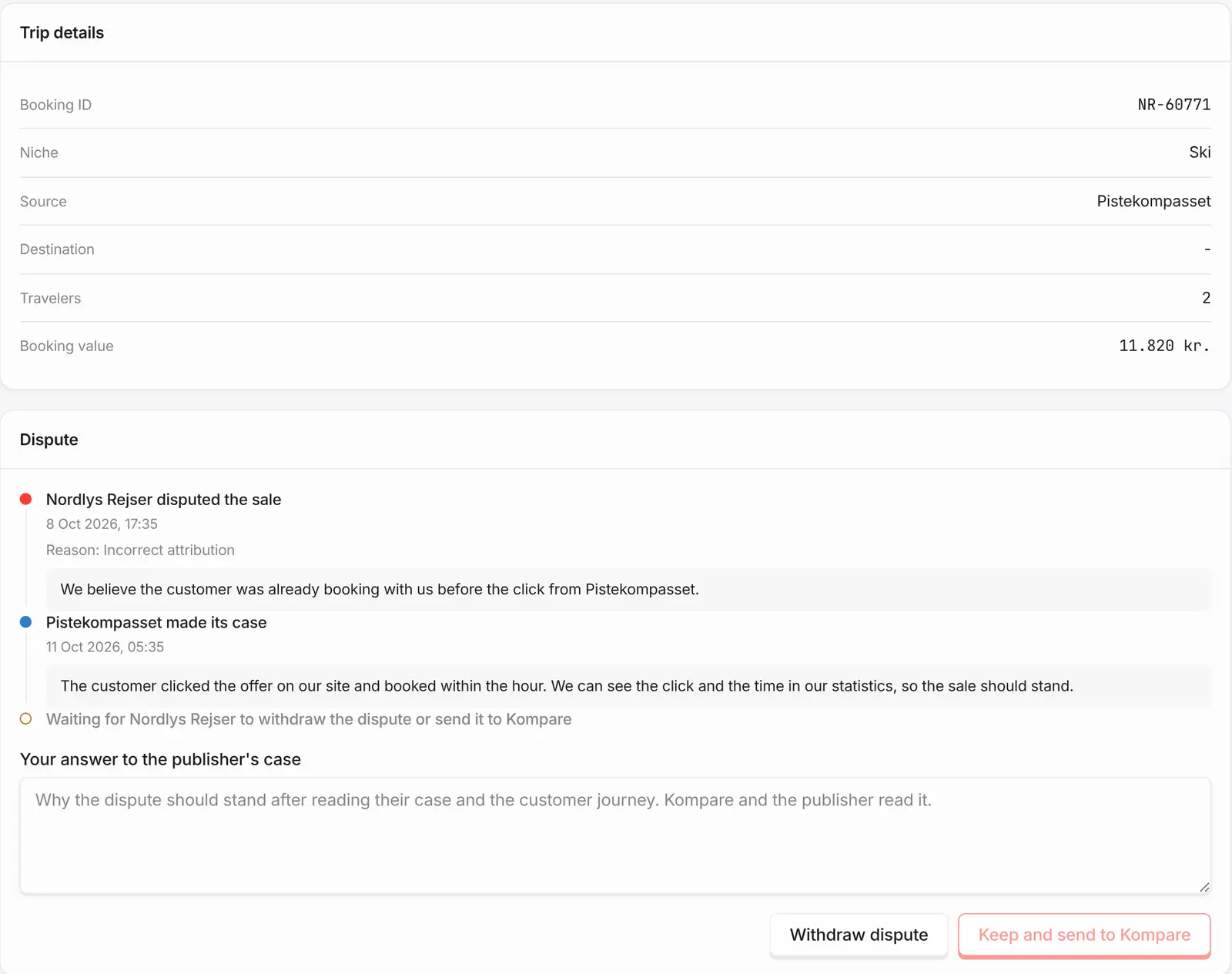
A disputed sale in the travel agency's console: trip details, the agency's reason and explanation, the publisher's reply, and buttons to withdraw the dispute or send it to Kompare.
Example with made-up data.

One script tag

Add one script tag to your site, or publish it through Google Tag Manager. It follows the visit through your booking flow and records the sale.

30 days of attribution

A sale is credited to the click that brought the visitor to you if the booking happens within 30 days.

Review every sale

Each sale appears in your console. Approve it or dispute it. Sales you leave untouched are approved automatically after the review window, 14 days by default.

Disputes with a reason

To dispute a sale, pick one of the set reasons, explain what is wrong and confirm that you have reviewed the customer journey. The publisher can read your reason and explanation and reply.

Both sides are heard

The publisher can reply within 48 hours. When a case stays contested, Kompare decides it and gives its reasons.

No payout during a dispute

While a dispute is open, nothing is paid on that sale.

From click to confirmed booking

A visitor clicks a trip on a publisher page and arrives on your site with a tracking key. The Kompare script, placed once on your site, follows the visit to your booking confirmation and records the sale: the booking value, the travellers and, where your confirmation shows them, the dates and destination.

Put the script on every site and subdomain your booking flow runs on, or publish it through Google Tag Manager. Single-page sites are handled too.

By default Kompare reads the booking details from your confirmation page. Kompare sets this up with you, and personal details on the page are masked before anything is sent. If you prefer, your own purchase event can send a handful of fields instead: booking reference, amount, currency and the number of adults and children. Then Kompare reads nothing from the page. Ask us if you want that.

  • The same booking reported twice is recorded as one sale
  • A repeat booking by the same visitor is recorded as its own sale
  • A sale that arrives with a gap, such as a missing booking reference, is still recorded
  • Attribution lasts 30 days from the click

Approve or dispute, on your timetable

Every sale starts as pending in your console, next to the journey that led to it, limited to your own side. You approve it, or you dispute it. A daily email digest and notifications remind you of sales waiting for review.

If you do nothing, the review window closes and the sale is approved automatically. The window is 14 days by default. Review sales as they arrive rather than leaving them to the clock.

To dispute a sale, choose one of the set reasons and write a short explanation of what is wrong. You also confirm that you have reviewed the customer journey behind the sale and that the dispute rests on a genuine assessment, not an assumption. The reasons are: the customer cancelled, a duplicate booking, sold internally or booked directly, fraudulent traffic, the customer did not book, incorrect attribution, a price mismatch, or another reason.

  • A written explanation is required with every dispute
  • You can withdraw a dispute at any time, and the sale is then approved
  • A sale you approved yourself is final. One approved automatically can still be disputed until its period has been settled

A clear process for you and for the publisher

When you dispute a sale, the publisher is notified and has 48 hours to make its case or accept the dispute. If the publisher accepts, the sale is not paid. If it makes its case, you can withdraw the dispute, which approves the sale, or send the case to Kompare with a note. If the publisher does not answer in time, the case also goes to Kompare. Silence alone never decides a dispute.

Kompare decides every contested case, upholds or rejects the dispute and gives its reasons. Neither the agency nor the publisher decides a contested case. While a case is open, nothing is paid on that sale. A dispute never deletes the sale, it stays on record.

Publishers follow all of this in their own console: their sales as approved, waiting or disputed, the journey behind each sale and the dispute itself, where they send their case or accept the dispute.

How it works

  1. Add the script once

    Put one script tag on your site, or publish it through Google Tag Manager.

  2. Sales arrive in your console

    Each booking that follows a click from Kompare shows up as a pending sale.

  3. Approve or dispute

    Approve what is right. Dispute what is not, with a reason and an explanation. Sales you leave alone are approved after the review window.

  4. The publisher replies, Kompare decides

    The publisher has 48 hours to answer a dispute. If the case is contested, Kompare decides.

Frequently asked questions

Do we have to approve every sale?

No. You can review every sale, and we recommend that you do, but sales you do not act on are approved automatically after the review window. The window is 14 days by default.

What do we need to dispute a sale?

One of the set reasons, a written explanation of what is wrong, and your confirmation that you have reviewed the customer journey behind the sale and that the dispute rests on a genuine assessment. The publisher can read your reason and your explanation, and has 48 hours to reply.

Who decides a dispute, and what happens to the sale meanwhile?

The publisher can make its case or accept the dispute within 48 hours. If the case is still contested, or the publisher does not answer, Kompare decides. Nothing is paid on the sale while its dispute is open.

Does it work with Google Tag Manager?

Yes. You can add the Kompare script as a single tag in Google Tag Manager, or place it on your site directly. A booking is credited to a Kompare click for up to 30 days.

Is every booking tracked?

Bookings that follow a click on Kompare are tracked when the visitor browser allows it. A visitor who blocks storage or opts out of tracking may not be followed to your confirmation page, so attribution can be limited in those cases.

Related

Be first when we open up

Tell us about your business and we will reach out personally when we open up access.

Join the waitlist as a travel agency →

Updated 5 November 2026